
Appearance
Content Types Work in Progress
Content
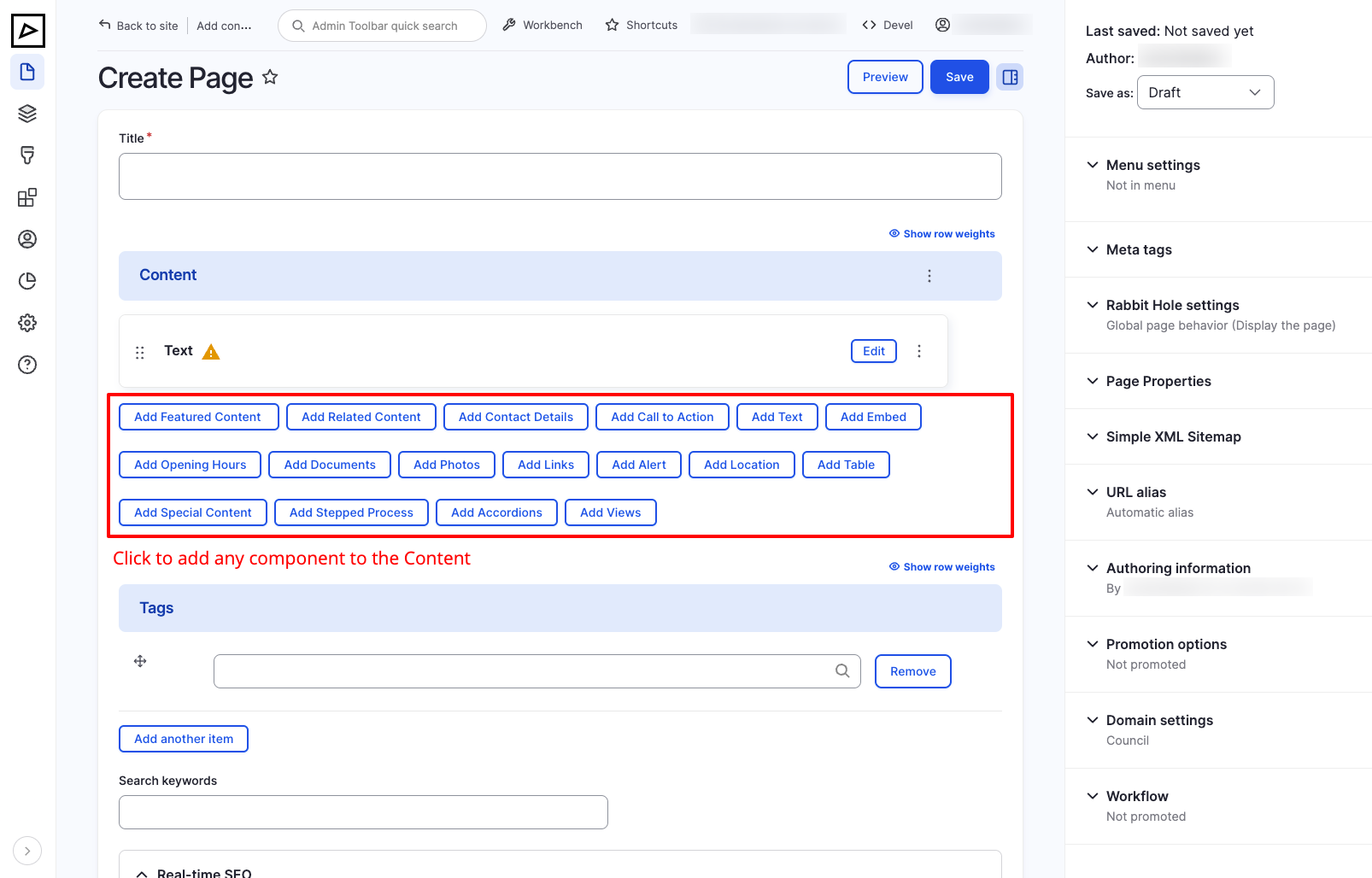
Most content types have Content block available which consists of components. Add components to the content to display different types of content, such as text, images, accordions, etc.
See the Components documentation for more information on managing components.
Add Component
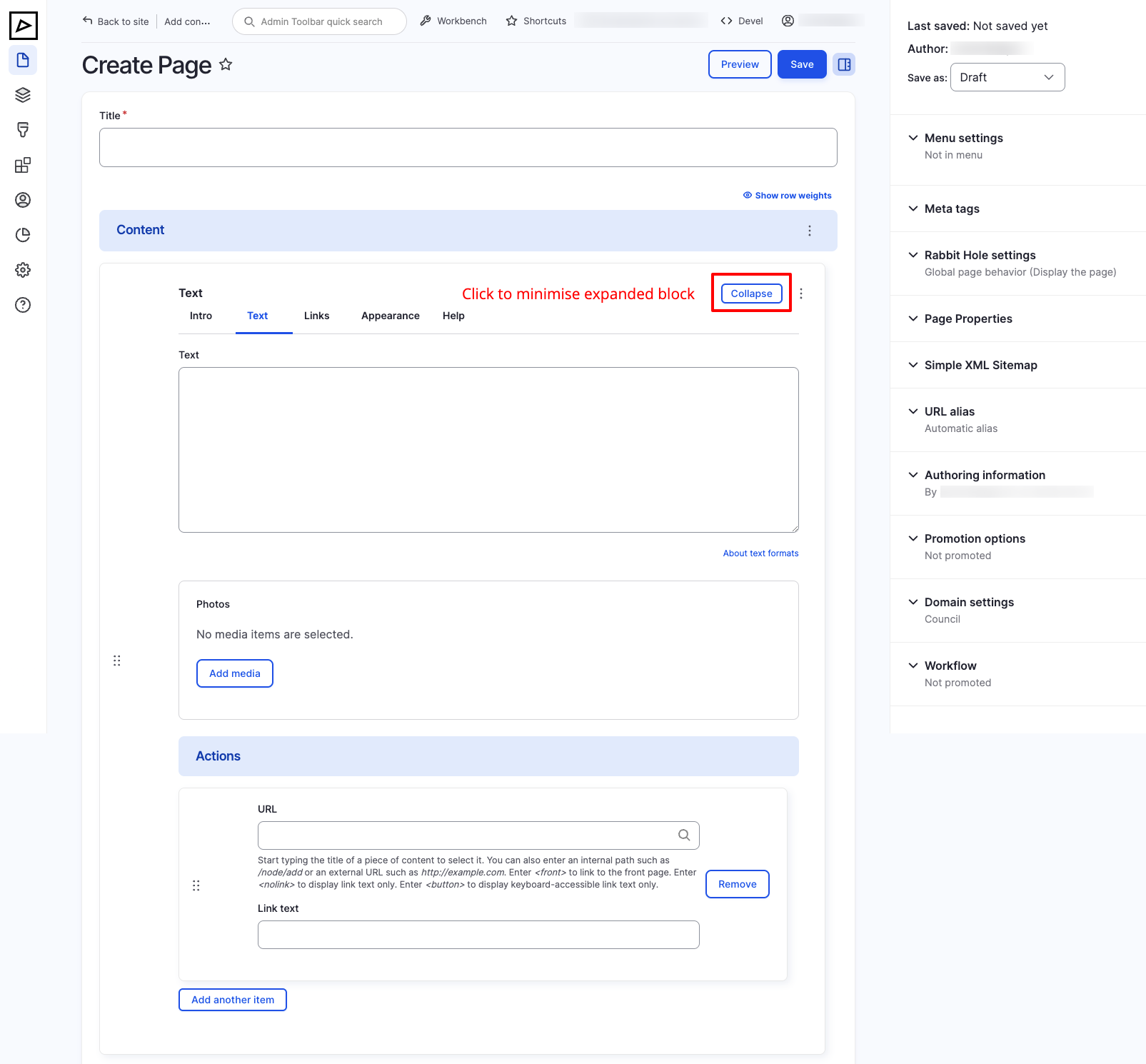
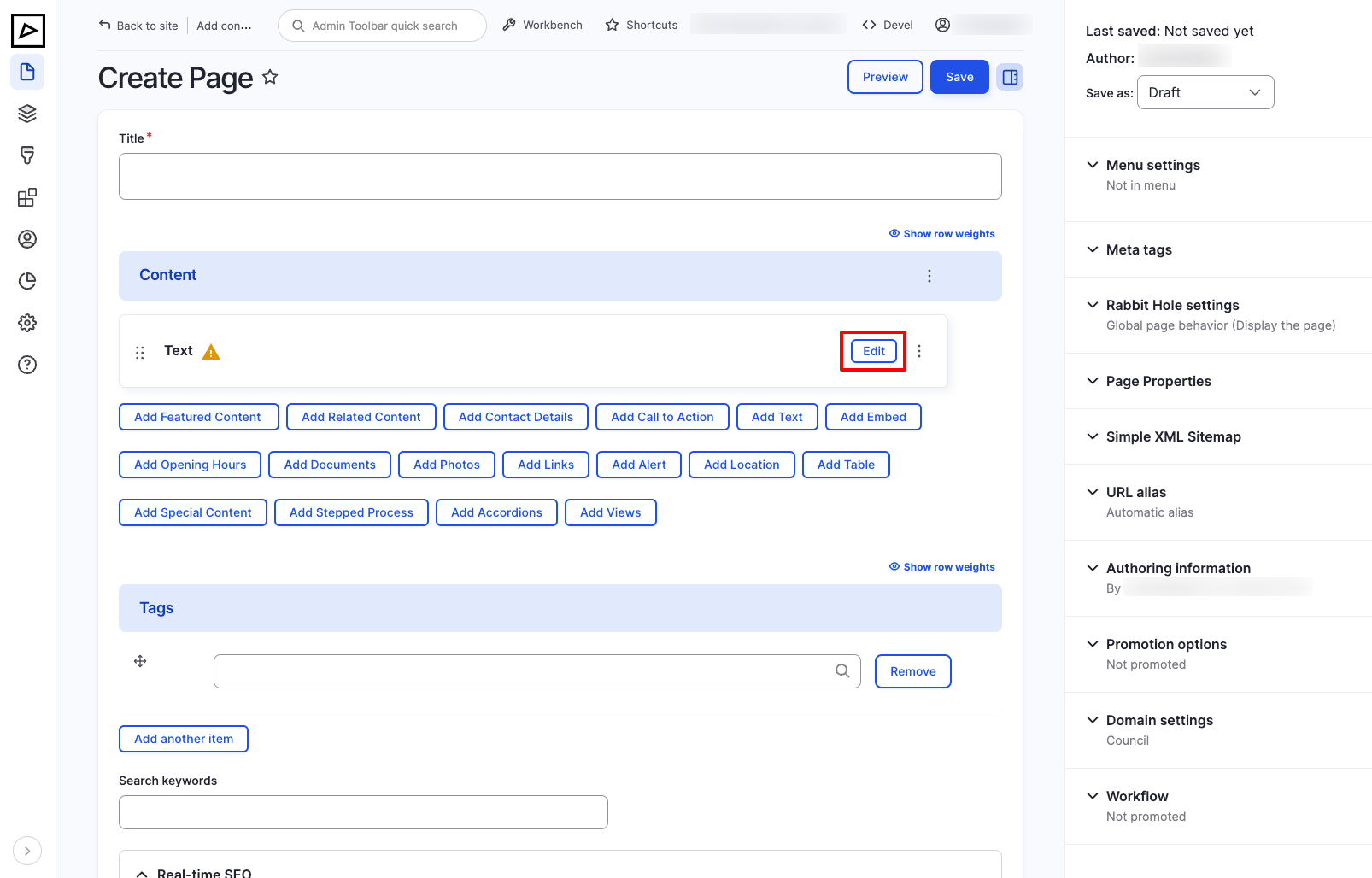
Expand / Collapse Component
To expand or collapse a component, click on Collapse / Edit.
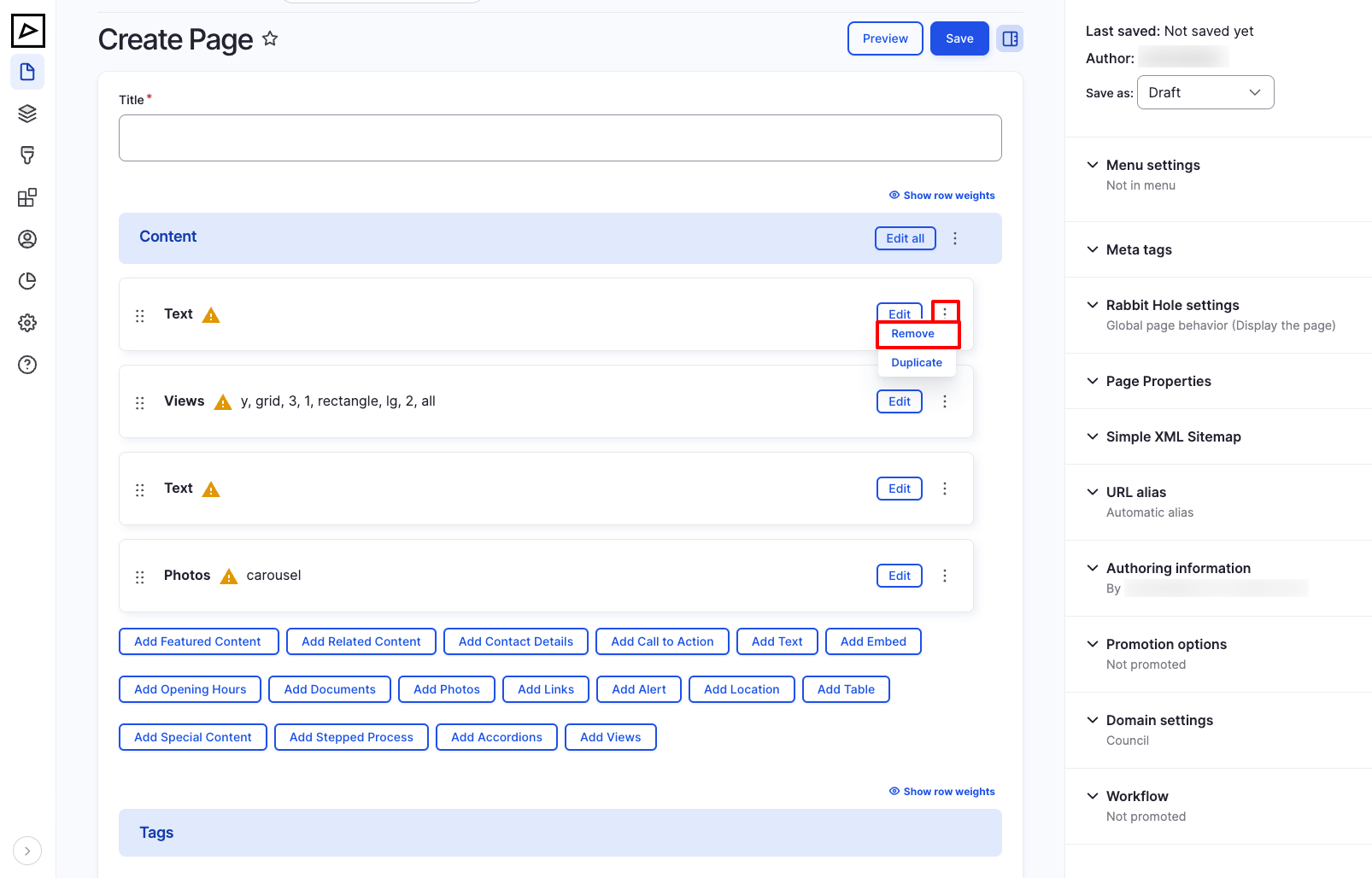
Remove Component
To delete a component from the content, click on triple dot ⋮ and then click Remove.
TIP
If you do not wish to remove the component but hide it from the frontend, go to the Appearance tab and toggle Hidden. See more
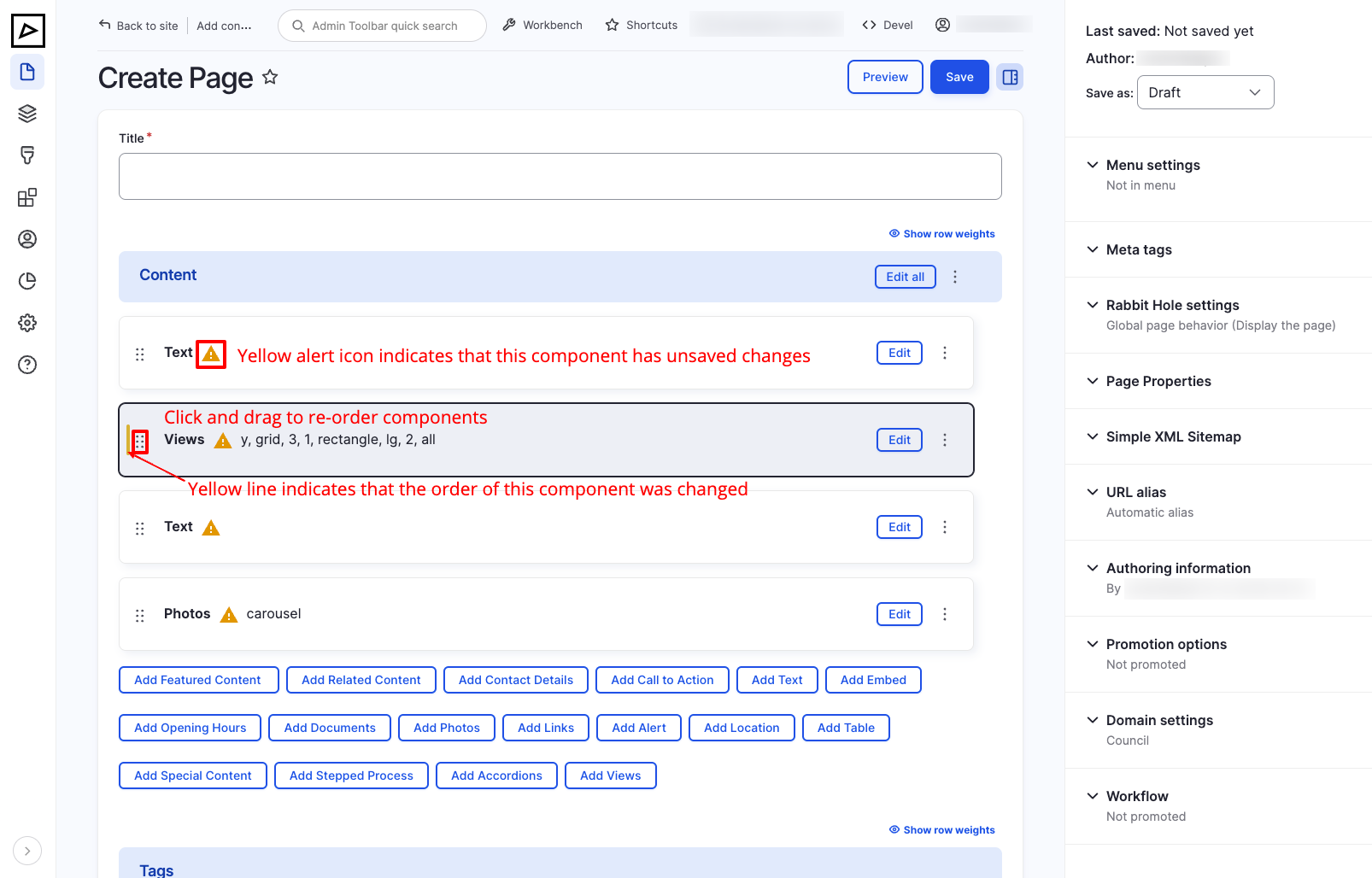
Reorder Components
To change the order of components, hover the double triple dot ⋮⋮ then drag and drop the component to the desired position.
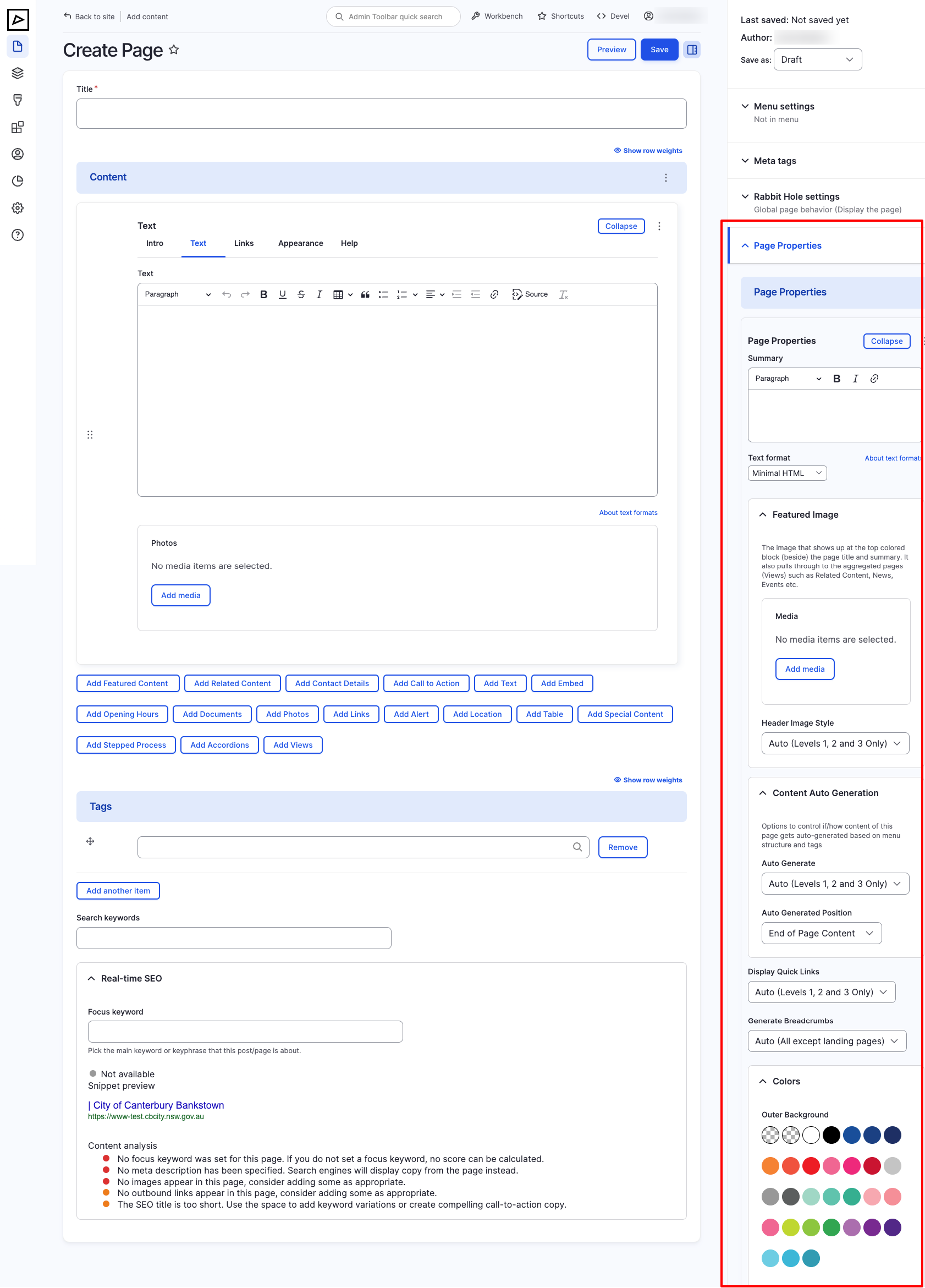
Page Properties
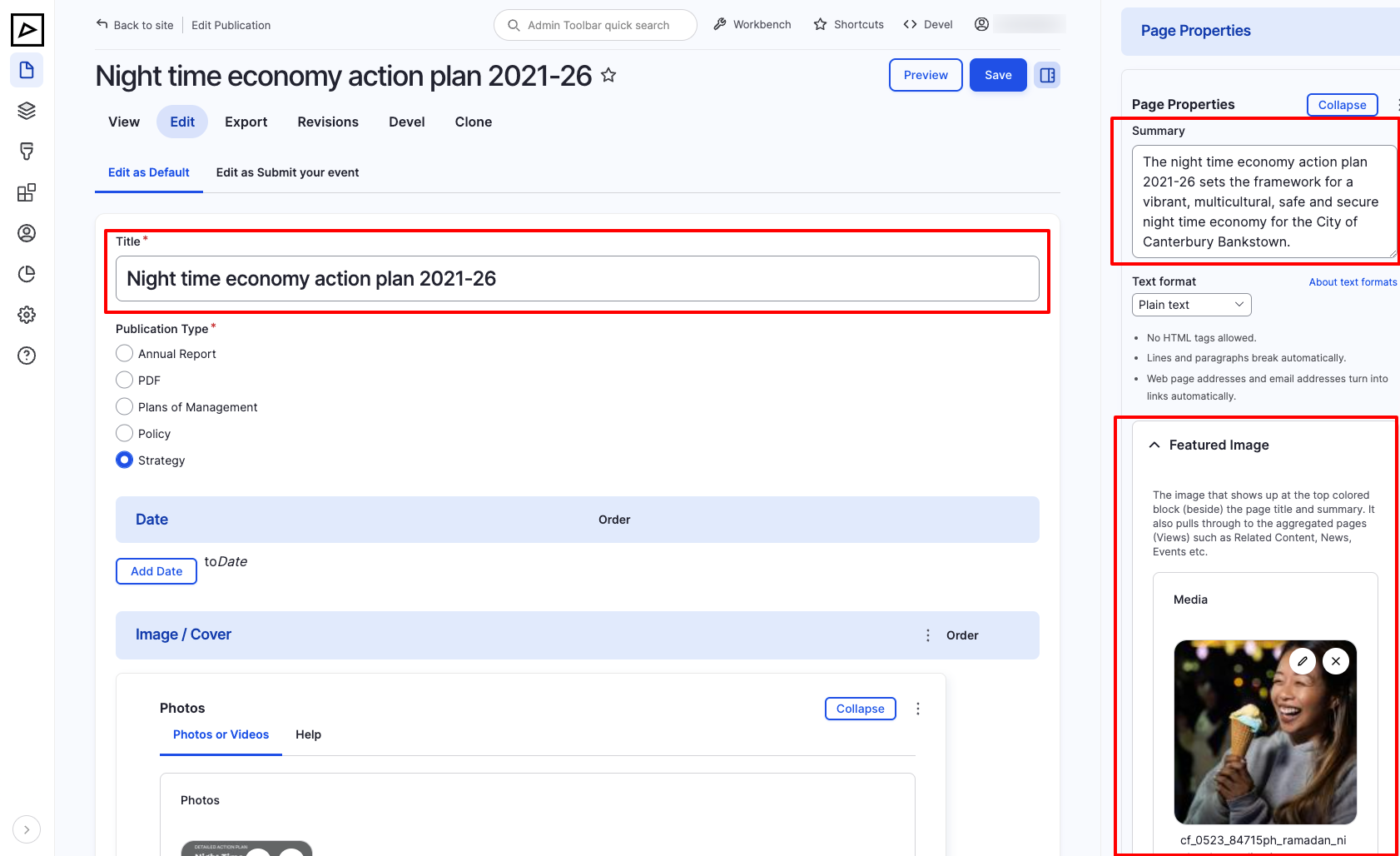
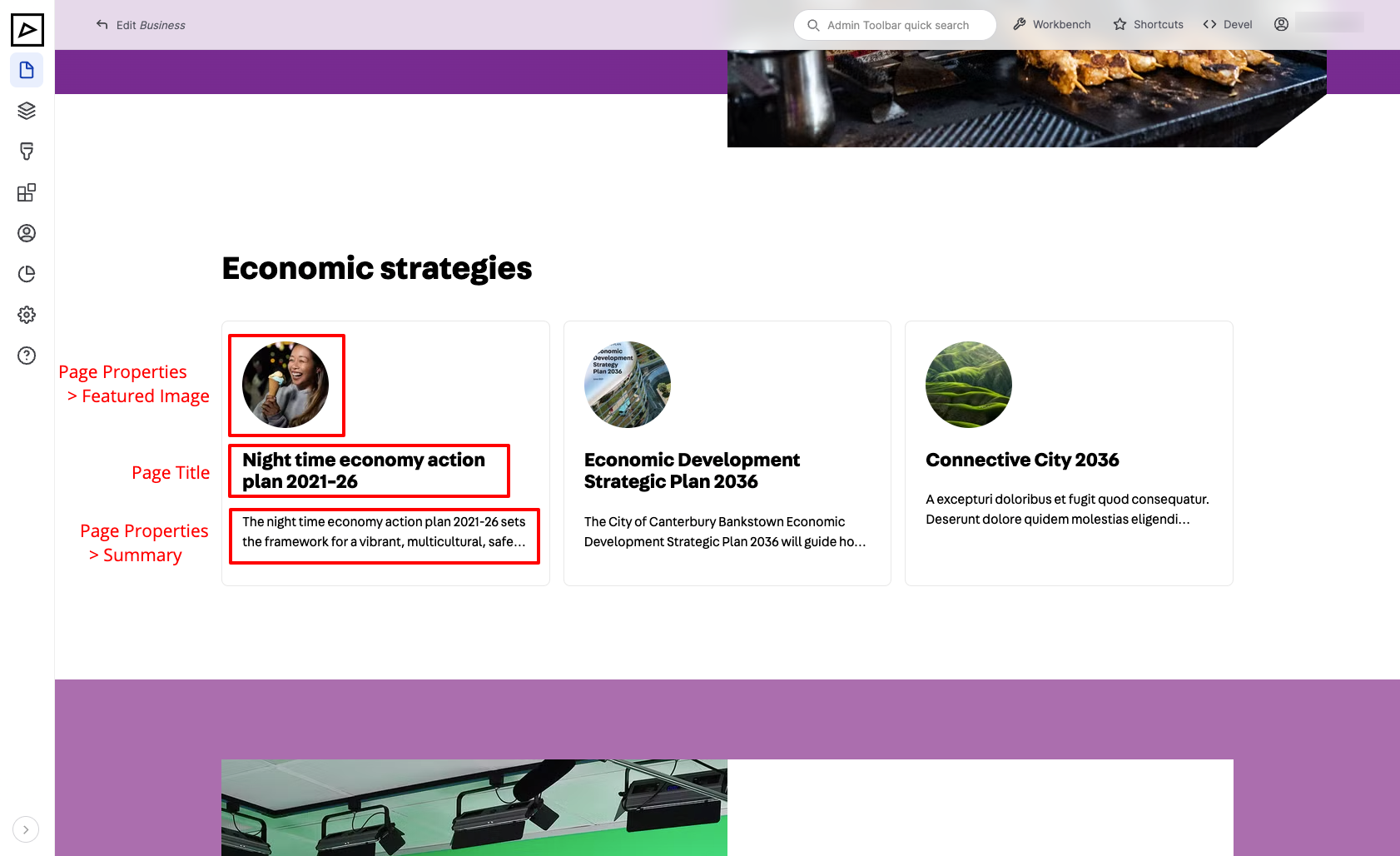
Page Properties Summary and Featured Image appear in:
- Related Content and Auto-generated Content
| Backend | Frontend |
|---|---|
 |  |
Site Search Results
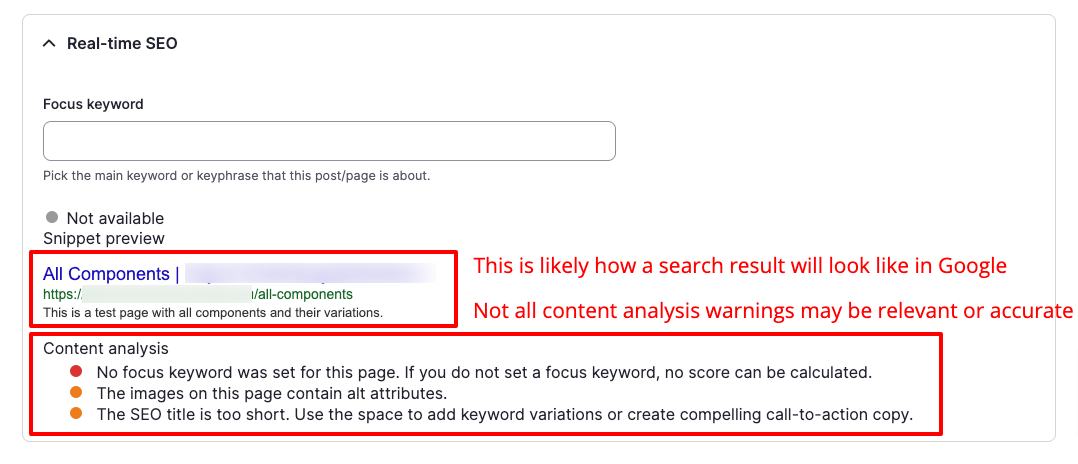
Google Search Results
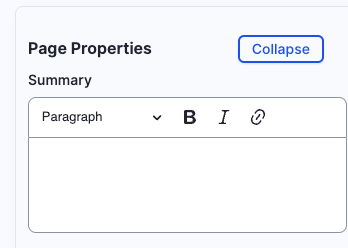
Summary
Short description of the content type (page) content. Ideally, under 160 characters to satisfy Google's SEO Description requirements.
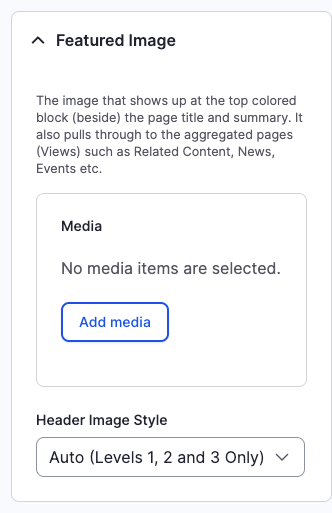
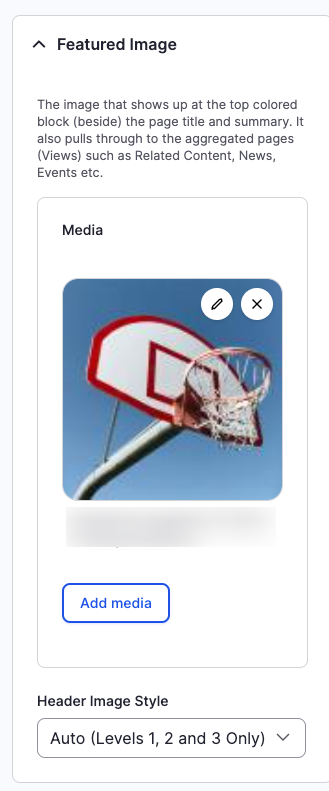
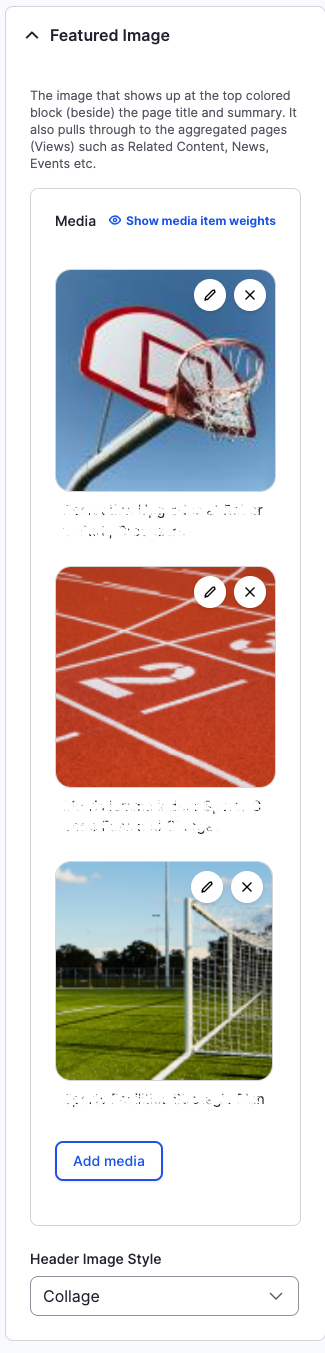
Featured Image
Upload or pick from Media Library an image that best fits page's purpose.
TODO: requirements, ref to uploading and choosing media in Media section
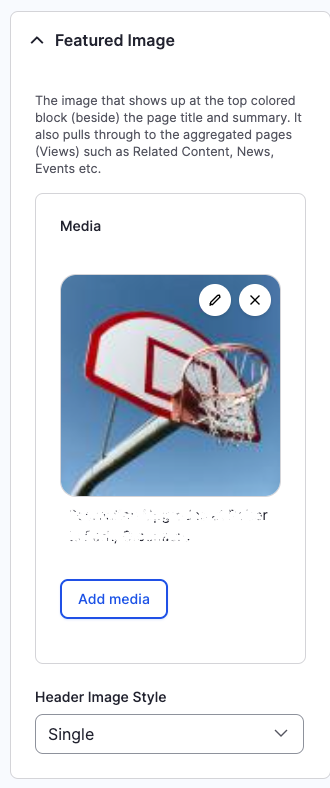
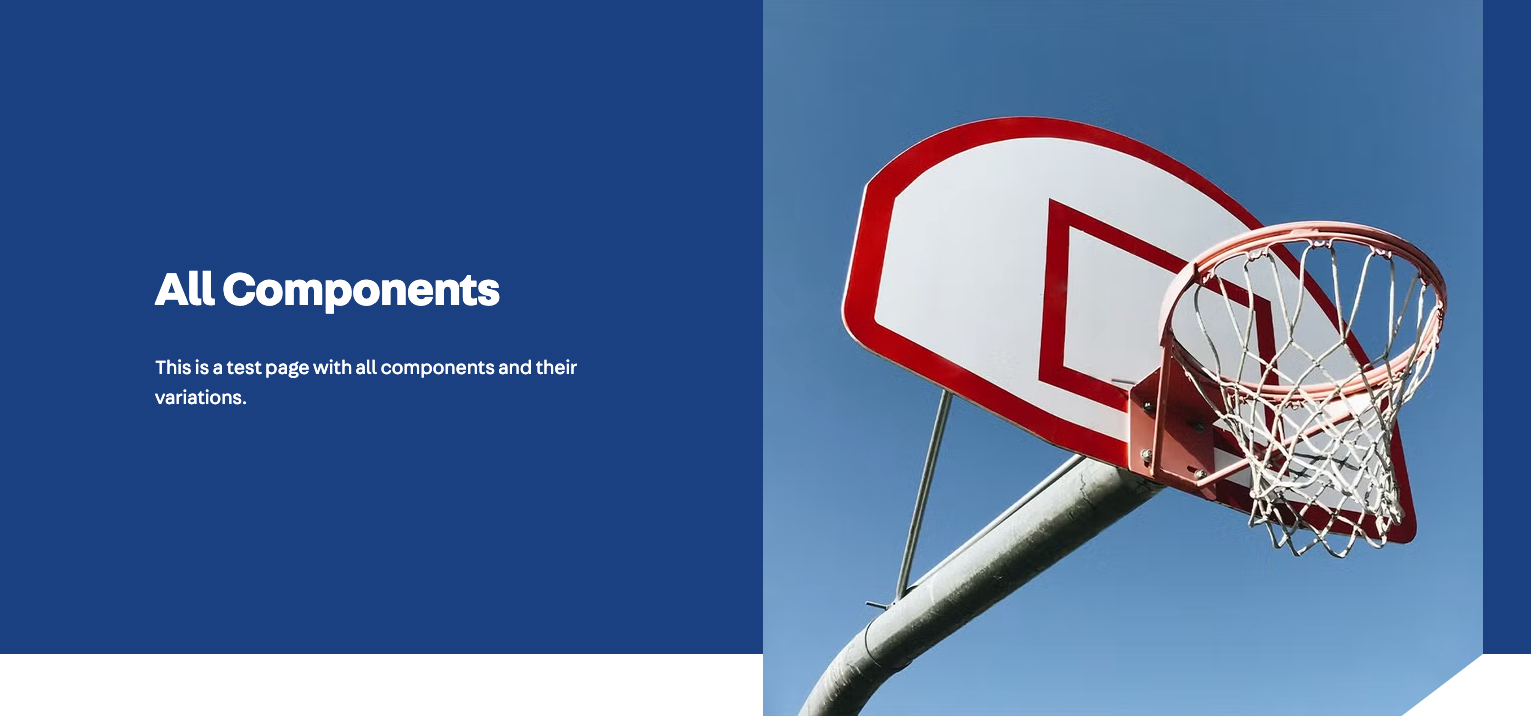
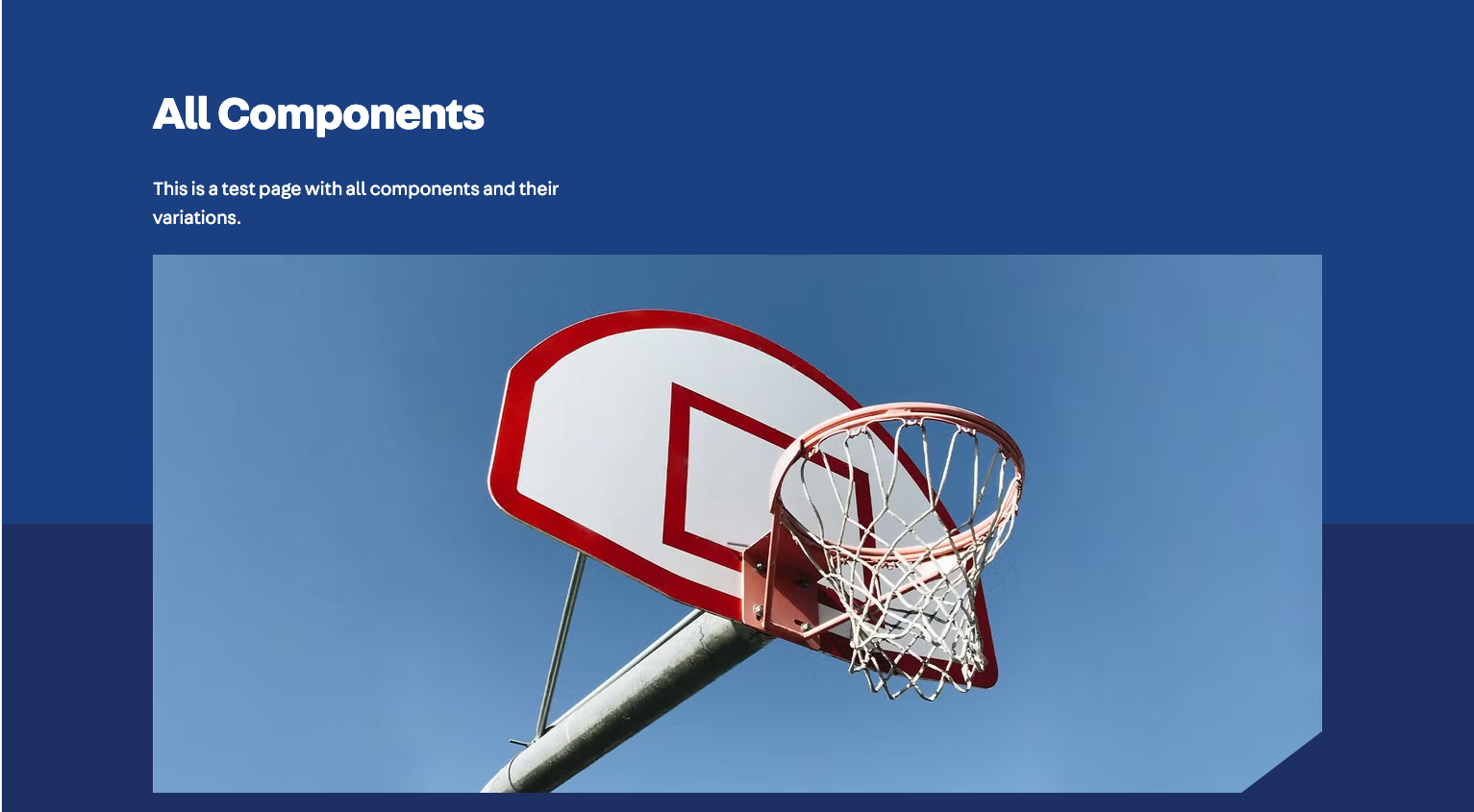
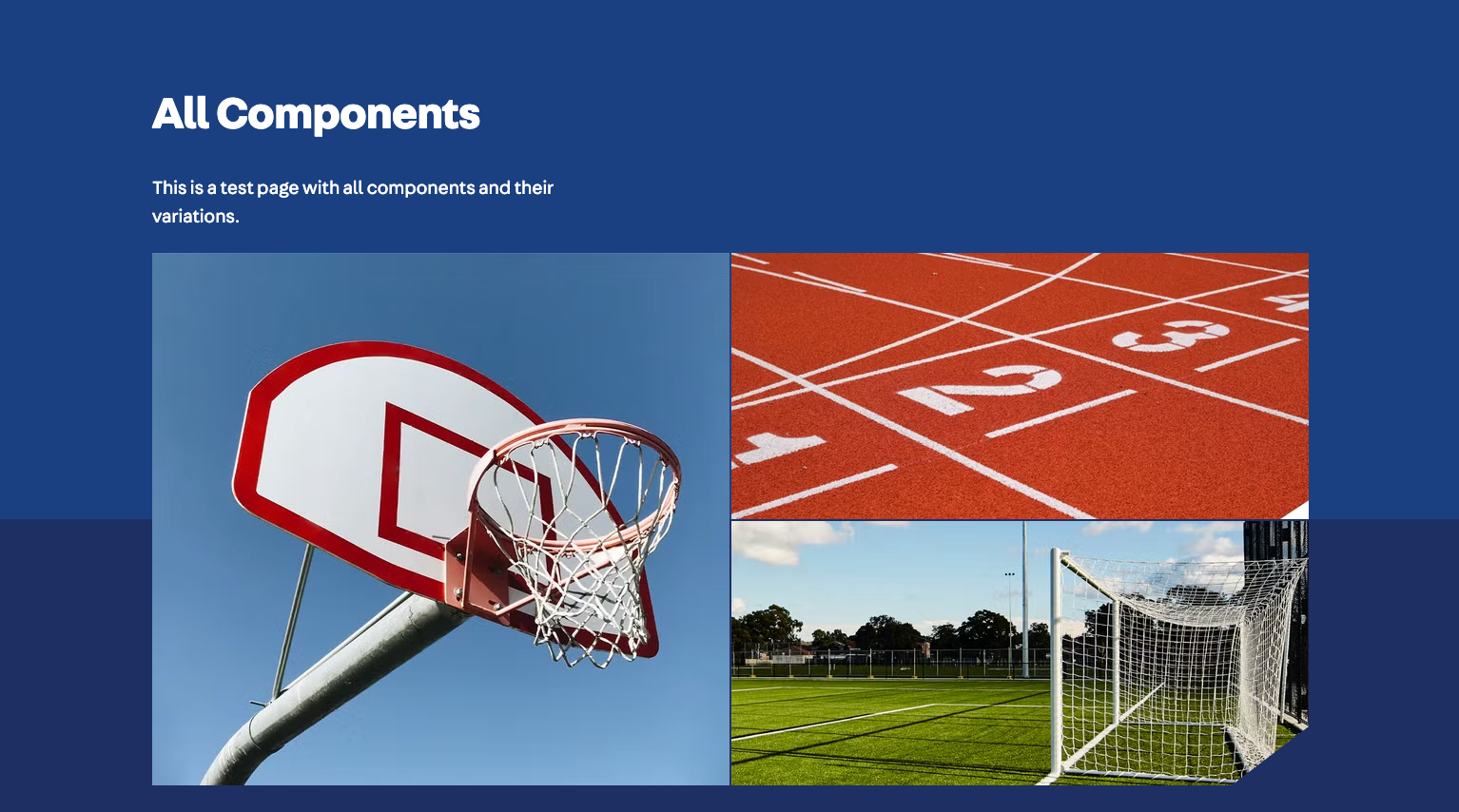
Header Image Style
Determines how Featured Image is displayed on the page.
Available options are:
- None
- Auto
- Single
- Collage
| Backend | Frontend |
|---|---|
 |  |
 |  |
 |  |
TODO: frontend screenshots and descriptions
Content Auto Generation
Auto Generate
Position
Display Quick Links
Generate Breadcrumbs
Colours
Outer Background
Inner Background
Content Background
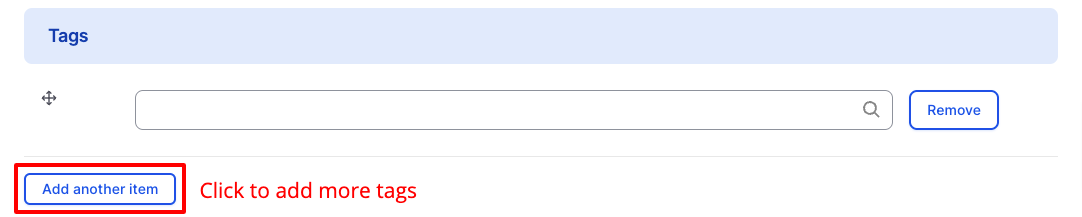
Tags
Usually displayed above the title of the page.
Search Keywords

Real-time SEO
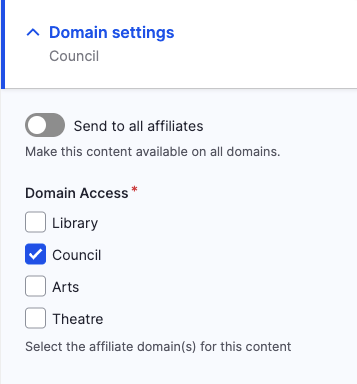
Domain Settings
Menu Settings
See Menus > Managing From Content.
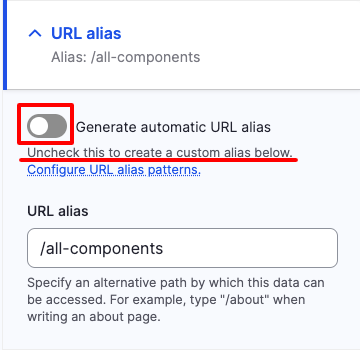
URL Alias Advanced
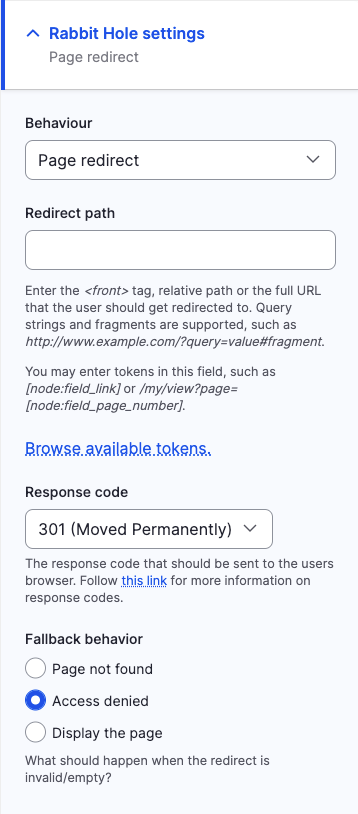
Page Redirects (Rabbit Hole Settings) Advanced
Behaviour
- Default (Global page behaviour)
- Page not found
- Access Denied
- Page redirect
Revisions Coming Soon
Workflow
See Workflows.